Resource Planning With AI: 5 Jobs You Can Do Faster, Tested on the Projectworks MCP
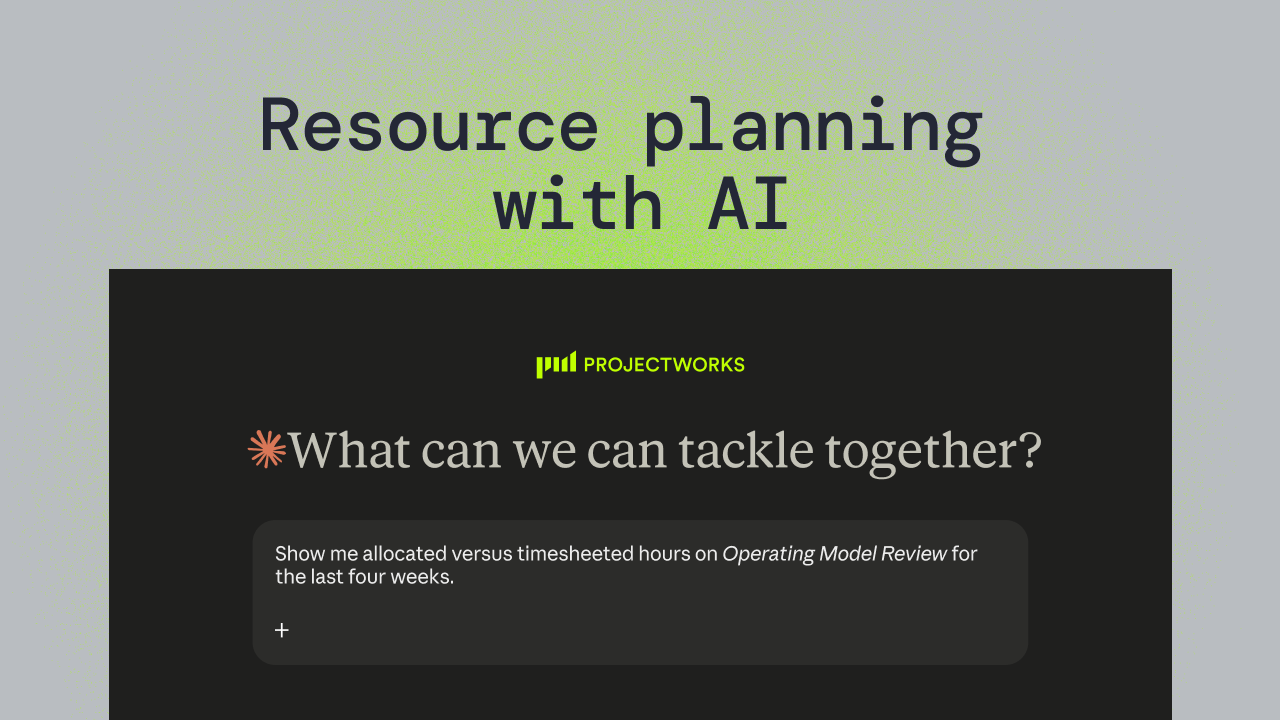



Use Claude, ChatGPT or Copilot at work? Connect them to Projectworks and handle everyday tasks from there. The connection runs on MCP - a common way for AI assistants to link up with other software so they can look things up and make changes.
Your client delays a project's start in the same week a new deal closes. In weeks like this, resource planning with AI saves the most time - where traditionally you'd spend most of the afternoon in the schedule on lookups and re-keying.
It's worth updating your resource plan as soon as changes like these get made. In Projectworks' analysis of resource planning patterns across 700+ firms, firms that resource at least half their staff eight or more weeks out had higher billable utilization and project margin, and grew at roughly twice the rate of firms that don't.
Below are five resourcing tasks you can do faster through the Projectworks MCP, each with the exact prompt, plus a table of seven more prompts to try. We tested every prompt through the Projectworks MCP. For the bigger picture, read how AI changes resource planning.
Unsure what a MCP is? Our plain-English guide for consulting firms breaks it down. Come back here when you're ready to see how it helps you handle everyday resourcing tasks with ease.
Key Takeaways
- Resourcing in advance has benefits: In Projectworks analysis of 700+ firms, firms that resource at least half their staff eight or more weeks out grow at roughly twice the rate of firms that don't.
- Permissions are respected: The Projectworks MCP only sees and changes what the connected user's own Projectworks login already allows.
- No re-entry: A resource manager can ask the Projectworks MCP about capacity and approve the drafted change in the same conversation, without re-keying the decision into the schedule.
How the Projectworks MCP handles resourcing
The Projectworks MCP connects the AI tool you already use to your Projectworks data. For resource planning it can read allocations, leave, project teams and timesheets in a single prompt.
When you ask for a change, the MCP drafts it first and saves it as a separate step. If your AI tool is set to ask before changing data, you review and approve the draft. If it’s set to always allow, the change saves straight away. Either way, the answer and the change happen in one conversation, without opening the schedule. We argued in AI resource planning: real vs hype that the person should make the call, so we’d suggest keeping approval on.
A note on permissions
Any user can connect with their own Projectworks login, not only account admins, and the MCP only sees and changes what their login already allows. A project manager who can't see other teams' resourcing in Projectworks won't see it through Claude either.
Anything it reads goes into your AI conversation, where your AI provider's terms apply, so check what your firm's agreement with that provider covers before you connect. Along the same lines, we highly recommend using business-level accounts with your AI tools rather than free ones. Business plans usually keep your conversations out of any model training and come with a data processing agreement, which matters when those conversations hold your team's names, schedules and hours.
Five jobs to get started with today
Each job below gives the prompt we ran, what came back and what to check. These examples use a fictional firm, so swap your own people and projects into these prompts.
Using an MCP to see who has room next month
This is a read action, so there's nothing to approve. The MCP reads resourced hours per person per week across all projects, along with each person's role and team, and your AI tool returns the developers and BAs who sit under the 30-hour line in each week of November.
Check the shortlist against what the work needs. The answer matches on role, so a developer with room isn't necessarily the developer with the right experience for the job. In a large firm, narrow it by office, team or a shorter date range for a quicker result.
Utilization is under pressure across professional services, which makes spotting these gaps early worth it.
What you need: Permission to view resourcing across projects.
Via MCP, push back an allocation when a project slips
This is where a connection that can write changes the job. You name the project, the person and what's changed, and the MCP drafts a shift on Charlize's resourcing line on the project, two weeks later than it sits now. Projectworks customers asked for this one.
The draft appears in the conversation for you to approve. Read it against what you asked for, checking the person, project and the number of weeks moved. If anything is wrong, ask again with the correction and a fresh draft comes back.
What you need: Resourcing write access in Projectworks.
Use an MCP to turn a client call into resourcing changes and see clashes
This prompt uses two connections in one conversation. The AI tool reads your meeting summary from any notetaker your AI tool connects to (we tested Zoom) to find the delay, then reads every resourcing line on the project, including each person's load on other projects in the weeks the work is moving into. It reports the clashes the shift would cause and drafts the shift for everyone on the project.
The clash report is the part to read slowly. Moving one project two weeks can push someone past their hours in a week where they were already booked elsewhere, and that's a decision to make before you approve anything, not after.
Because the MCP moves allocations and not dates, you'll still update the project's start date in Projectworks yourself.
What you need: Meeting summaries turned on in your notetaker (in Zoom for example, that's AI Companion) and permission to view them, plus resourcing write access in Projectworks.
Via MCP, check whether the pipeline can be staffed
Here the AI tool reads deals and close dates from any CRM your AI tool connects to (we tested HubSpot) and capacity by role from Projectworks, then puts the two side by side, so you see the deals closing in the next 60 days next to the BA and developer hours still free in November.
The answer is only as good as the close dates in your CRM. A deal sitting on a stale close date shows up as demand that isn't real, so check the list before you start moving people. For how to read the comparison once you have it, see can you take the deal?
What you need: Permission to view resourcing across projects, plus a CRM connection in your AI tool.
Using an MCP compare allocated hours with timesheeted hours
This works when resourcing and timesheets both live in Projectworks. The MCP reads the allocations on the project, then each person's timesheet for the same four weeks, and your AI tool lays the two side by side by person and week.
Look for gaps in both directions. Someone logging well under their allocation may be blocked or booking time to other work, while someone logging well over it is eating margin on a fixed-fee job. If you want the formula behind the utilization number, see utilization 101.
What you need: Visibility of other people's timesheets and resourcing.
Seven more resource management prompts to try
These are shorter jobs, and most of this list were requested directly by Projectworks customers.
Leave sits naturally next to resourcing, which is the case we made in handling unscheduled leave. If you staff with placeholders until a role is filled, project resource management with placeholders explains how to plan around them. The rebalancing prompt is the fastest fix if the capacity question has turned up someone who is overallocated.
Getting reliable answers from AI resource planning
Keep your questions narrow. The response size limit from the capacity job applies to any broad read, so asking about one office, team or date range at a time gets you a complete answer instead of a cut-off one.
State the start date for any change. "From 26 October onward" gives the MCP a boundary to work from, and it won't guess one for you.
Review every draft before you approve it. The review step exists because AI answers should be checked before they change a live schedule. An AI tool can match the wrong person when two people share a first name, or read "two weeks" differently from how you meant it, and the draft is where you catch that. It's the same reasoning behind the real vs hype piece, applied to the schedule you actually run.
FAQs
Does the Projectworks MCP respect user permissions?
Yes. It's a user-level connection, and it only sees and changes what that person can already see and change in Projectworks.
Can the Projectworks MCP change resourcing, or only read it?
It reads resourcing and drafts changes, and then it respects the tool permissions you've set. If you've set the tools to 'always approve', nothing is saved until you approve.
Which AI tools work with the Projectworks MCP?
The Projectworks MCP works with Claude, ChatGPT and Microsoft Copilot.
Where does my data go when I use the Projectworks MCP?
Data the MCP reads goes into your AI tool's conversation, under that provider's terms.
Terms used in this post
Let us show you how your firm can utilize AI in resourcing

Read similar resources from Projectworks

Projectworks has spent 25 years inside consulting firms. Here’s why we built a Consulting CRM around the proposal, and where it goes next.
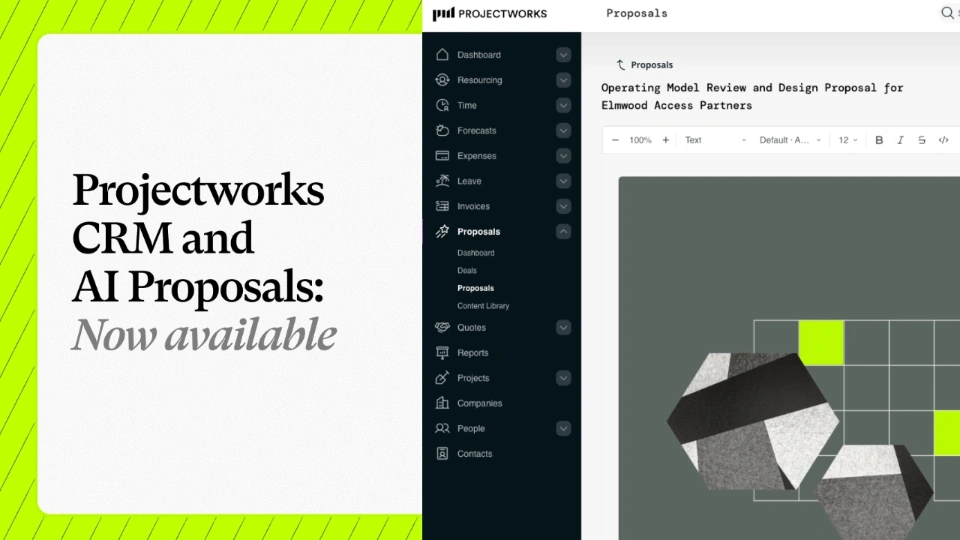
We're excited to announce that our Consulting CRM and Proposals are now available for anyone to use or try out. In just three months, a fast-growing group of firms have been running their pipeline and proposals in Projectworks as part of our early access group, and the results have blown us away.

What is MCP? A plain-English guide to the Model Context Protocol for consulting firms, and what to check before you connect your data to your AI.