AI Prompts for Project Managers: 5 Ways to Catch Budget Problems Early With MCP



If Claude, ChatGPT or Copilot is already open somewhere in your working day, connect it to Projectworks and it can check delivery against the budget and draft changes for you to approve. The connection runs on MCP, a common way for AI assistants to link up with other software so they can look things up and make changes there.
Picture a morning where your client agrees to extra testing in a Teams thread, and an hour later finance asks why the same project is at 85% burn. You might think the best AI prompts for project managers start with pasting the Jira board, the budget and the timesheets into a chat, even though all three already sit in connected systems. Checking them against each other is where an afternoon could go. The prompts below skip the wrangling. Your AI assistant reads the live numbers in Projectworks and does the checking for you.
Interested in resource planning with AI? See the resource planning prompts post. Or unsure what a MCP is? Our plain-English guide for consulting firms breaks it down. Come back here when you're ready to see how it helps you handle everyday project managment tasks with ease.
Key takeaways
- Delivery checked against budget: A project manager can compare open work in their delivery tool with budget burn in one prompt, because the AI assistant reads both in the same conversation (we tested with Jira).
- Scope changes reach the budget: When a client approves extra scope, the Projectworks MCP can draft the new budget and its timecodes for the project manager to check.
- Permissions are respected: The Projectworks MCP only sees and changes what the connected user's own Projectworks login already allows.
- No re-entry: A project manager can turn a meeting summary or timesheet comments into drafted time entries and approve them in the same conversation, without re-keying anything.
How does the Projectworks MCP handle project and budget data?
The Projectworks MCP connects the AI tool you already use to your Projectworks data. For a project manager it reads budgets, burn, burn percentage, projected burn and forecast, plus timecodes, timesheet entries and expense claims, which covers most of what AI project budget tracking needs.
Any user can connect with their own Projectworks login, not only admins, and the MCP sees and changes only what that login allows. Dollar figures follow the same permissions, so a project manager who can't see budget amounts in Projectworks won't see them through their AI assistant either.
Anything the MCP reads goes into your AI conversation, where your AI provider's terms apply, so check what your firm's agreement with that provider covers. Use business-tier accounts, since business plans usually keep conversations out of model training and come with a data processing agreement.
Five project management jobs to start with
Each job below gives the prompt we ran, what came back and what to check. These examples use a fictional firm, so swap your own people and projects into these prompts.
Use the MCP to see which of your projects are over budget or forecast to go over
This is a read action, so there's nothing to approve. The MCP checks burn, burn percentage and projected burn for each active project, and your AI tool returns the projects already past 90% alongside the ones heading over on current forecast. You'll only see the projects your login covers.
Of the two groups in that answer, the projects forecast to go over are the ones to act on, because they still have time to change course. For a weekly version of this check, use the weekly project risk review with AI cheat sheet.
What you need: Permission to view dollar amounts on your projects.
Via MCP, compare delivery progress with budget burn
This prompt uses two connections in one conversation. The AI tool reads open work and its status from your work management tool, which in our test was Jira, and budget burn and forecast from Projectworks. It then sets them side by side, so the open work shows what's left to deliver and the burn shows the money left. It's the reconciliation project managers would otherwise do with two browser tabs and a calculator.
Status is of course only as current as the board. A team that closes work a week late makes the project look worse than it is, so tidy the board before you trust the comparison. The same pattern should work with other work managements tools through their own connectors.
What you need: Permission to view dollar amounts on the project, plus your work management tool connected to your AI assistant.
Use MCP to turn an agreed scope change into a new budget and timecode
The MCP reads the project's existing budgets and drafts the new one, with its GL code, for you to review. This job takes two prompts because a timecode needs a budget to sit on, so approve and save the budget before you ask for the timecode.
With the budget saved, the second prompt drafts the new timecode at the rate you gave. Users who can't view dollar amounts can't set the amount or the rate, and budgets can't be added to archived projects. If the agreement happened in Microsoft Teams for example, the AI tool can read the thread first and work from what was agreed there (see the table below). Agreed changes that never reach the budget are where scope creep usually starts!
What you need: Permission to edit the project's budgets and timecodes.
Use the MCP to fix miscoded time before it reaches invoicing
Time logged to the wrong timecode bills the wrong budget, and it often surfaces only when the client queries an invoice. The MCP reads each entry on the timecode with its comment, and where a comment points to different work, it drafts removing the entry and logging the same hours to the right timecode. Fixing it at this stage is far easier than issuing a credit note.
Invoiced entries are locked and can't be moved. Logging to a day that already has an entry on the target timecode replaces that entry, so make sure the day's hours still add up.
What you need: Permission to edit other people's time, plus time entries with comments that describe the work.
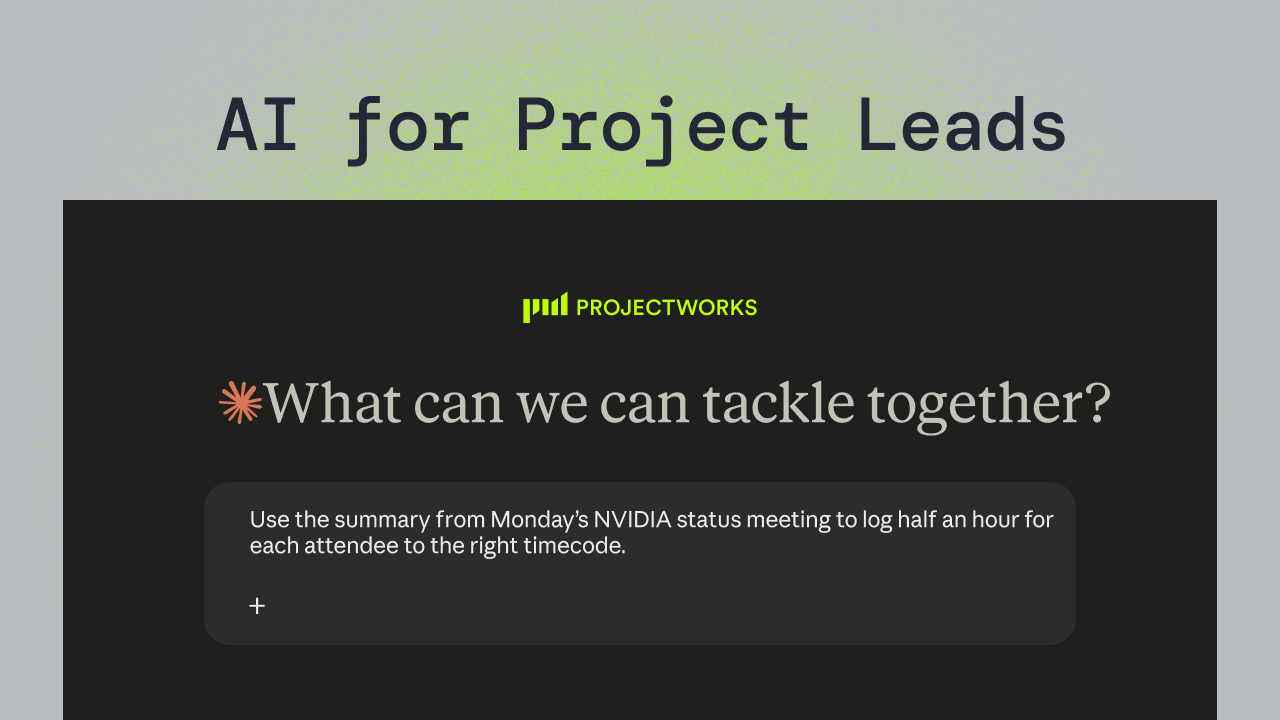
Via MCP, log a status meeting for everyone who attended
Here the AI tool reads the meeting summary and attendee list from your meeting tool (we tested Zoom with AI Companion), then drafts a half-hour entry for each person on the right timecode. Once you approve, the entries save and each timesheet stays unsubmitted, so every attendee still reviews and submits their own week.
Check the names against the attendee list before you approve, and take out anyone who shouldn't carry the time, such as a client attendee. Our guide to post-meeting admin covers the other jobs AI can take on after a call.
What you need: AI meeting summaries turned on in your meeting tool, permission to view them, and permission to log other people's time.
Six more prompts for project and delivery leads
These are shorter AI prompts for project managers and delivery leads. We confirmed the MCP tools behind each one, but we didn't run every prompt end to end, so read each draft carefully.
The 'Draft a status update with burn' prompt in the table gives you a first draft with real budget figures. To shape that draft for the client, our client status updates with AI cheat sheet covers what a client wants to see in one.
Getting reliable answers from AI project management prompts
Most firms have projects with similar names, and the AI tool will pick one if you don't say which, so name the project in every prompt.
When the question is about what was billed, ask for finance-approved figures, or the answer can include invoices still in draft or waiting for approval.
Read every draft for the person, the amount and the timecode before you approve it. An AI tool can match the wrong person when two people share a first name, and the draft is where you catch that. We made the case for keeping a person on the decision in AI resource planning: real vs hype, and it holds for budgets and timesheets too.
FAQs
Will the Projectworks MCP show budget figures I can't see in Projectworks?
No, because it's a user-level connection that shows only what your Projectworks login can already see.
Where does my data go when I use the Projectworks MCP?
Data the MCP reads goes into your AI tool's conversation, under that provider's terms.
Which AI tools work with the Projectworks MCP?
The Projectworks MCP works with Claude, ChatGPT and Microsoft Copilot.
Terms used in this post
Let us show you how your firm can utilize MCP for project delivery

Read similar resources from Projectworks

Projectworks has spent 25 years inside consulting firms. Here’s why we built a Consulting CRM around the proposal, and where it goes next.
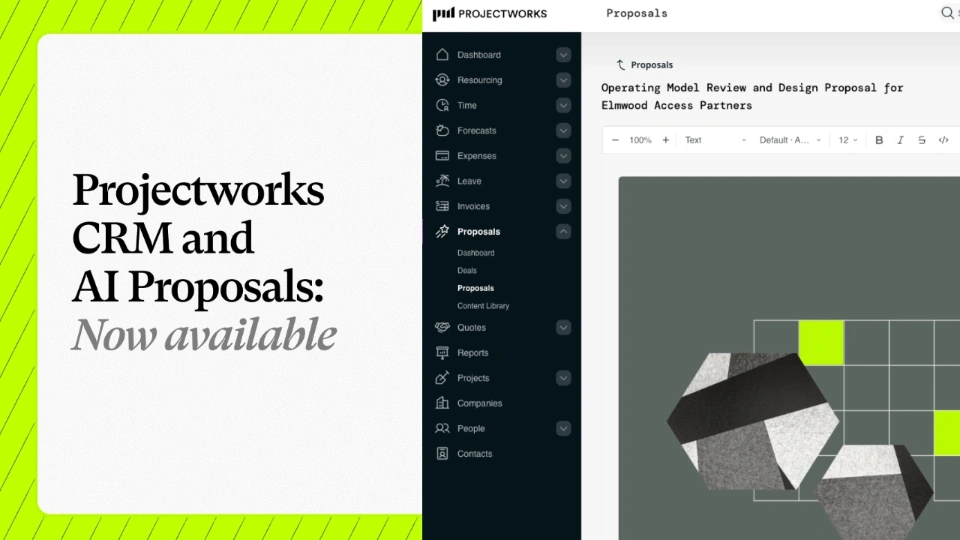
We're excited to announce that our Consulting CRM and Proposals are now available for anyone to use or try out. In just three months, a fast-growing group of firms have been running their pipeline and proposals in Projectworks as part of our early access group, and the results have blown us away.

What is MCP? A plain-English guide to the Model Context Protocol for consulting firms, and what to check before you connect your data to your AI.